
For a demonstration of how "automated" upgrading of your software might work, here is an example. This demonstration uses the files ptch_Upgrade.dll and Upgrade.exe from RLN PatchMaker version 0.02 beta(4). You can download RLN PatchMaker from here if you haven't already.
Please note that this demonstration example is provided as is, with no kind of warranty what so ever, and that following the described steps in no way guarantees you from losing all or some information stored on your hard disks etc.
Let us elaborate further on the situation described in the patch creation example. Suppose that we have two version of our software SuperApp. The newest build in the folder C:\NewStuff\, and an older version in the folder C:\OldStuff\.
Now pretend that the older version was build with subsequent upgrading in mind. We simulate this by copying the files ptch_Upgrade.dll and Upgrade.exe into the folders C:\OldStuff\ and C:\NewStuff\. We will copy both files to both folders. This example only requires the files to be copied to the older version folder C:\OldStuff\ to work, but future upgrades to the new build of SuperApp will require that the files are copied to the new build folder C:\NewStuff\ as well. The size of the patch will be practically unaffected wheter the files are copied to C:\NewStuff\ or not; both files are already included in C:\OldStuff\.


We create a patch as descibed in the patch creation example:
It is almost time to play the role of a SuperApp customer.
The customer will already have the older version of SuperApp. To recreate this scenario we create a new folder named C:\My Program Files\SuperApp\. We copy all the files from C:\OldStuff\ to this new folder, and imagine that this is where SuperApp is installed.
To imitate the functionality that SuperApp has located and downloaded an available upgrade we manually copy SuperApp.ptch from C:\Ptch-files\ to C:\My Program Files\SuperApp\.
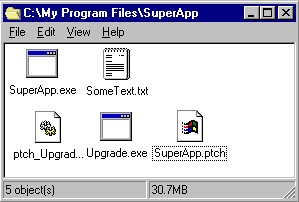
It is nescessary to close all open folder windows of C:\My Program Files\SuperApp\ before upgrading. The upgrade will delete the folder and replace it with a new one with the same name.
We could have SuperApp launch the upgrade, but let us do it ourself:

Open the folder C:\My Program Files\SuperApp\ and verify that it contains the new build of SuperApp.
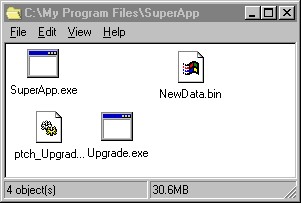
SuperApp has been upgraded successfully.